Natwest Overdrafts
Natwest Group created a new proposition called Natwest +, which would supersede Natwest Premier service for new affluent customers. A branding company created the new branding, which was based on Natwest Bank core branding.
I worked in a core team with product owners, the legal team, developers, business analysts, UX designers and researchers, and a development team specialising in onboarding applications. We had daily stand-ups, retros, design reviews, legal reviews, show and tells for wider business teams and the brand team.
I led the rebranding of the UI of the design systems and started to create the journeys for overdrafts on the new platform. I made a new colour palette based on the new branding and a new set of fonts used in the user interface designs.
Sample of Overdraft screens below

Overdrafts features
- Getting started, including basic overview
- Choose your limit, slider or direct input field and a comparison table to view rates and costs
- Choose user bank account
- Confirm details linked to account
- Confirm income and expenditure
- Pay decrease questions
- Documents agreement
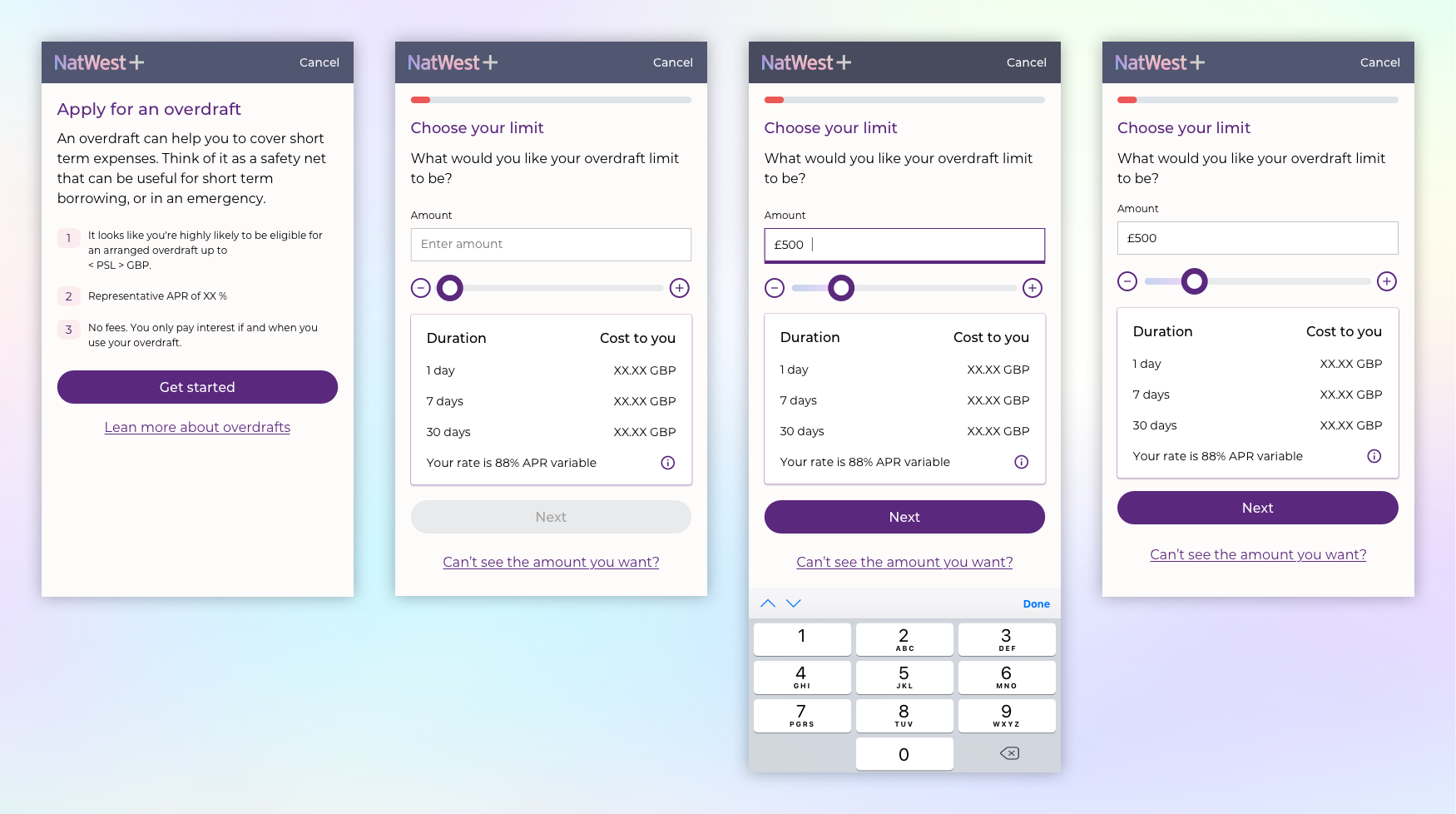
Get Started and Choose Limit
The first screen of the overdraft flow has general information and a button to get started; there is also a text link to view more details in a modal window. The second screen has a slider and direct input field; this lets the user see typical rates quickly without filling in further information before continuing the process.
Sample of Choose Limit screens below
Select Account and Confirm Details
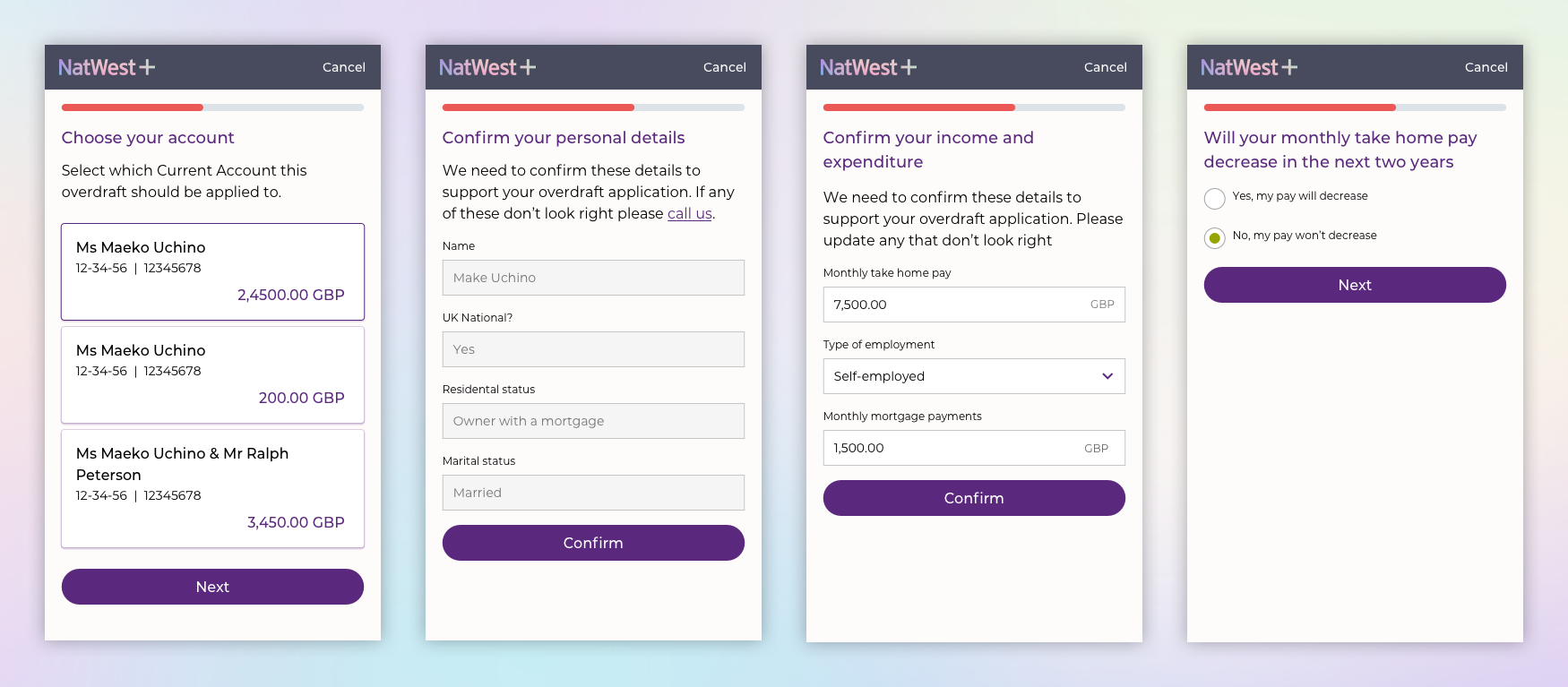
In the next step, the user can choose which current account to link to the overdraft. On the next screen, the user will confirm personal details that are related to that account; this section is not editable. Then the user will verify income and expenditure; this section is editable in case any circumstances have changed, such as monthly take-home pay or mortgage payments. Lastly a radio button choice about possible decreases in monthly income.
Sample of Select Account and Confirm Details screens below
Finalise Overdraft
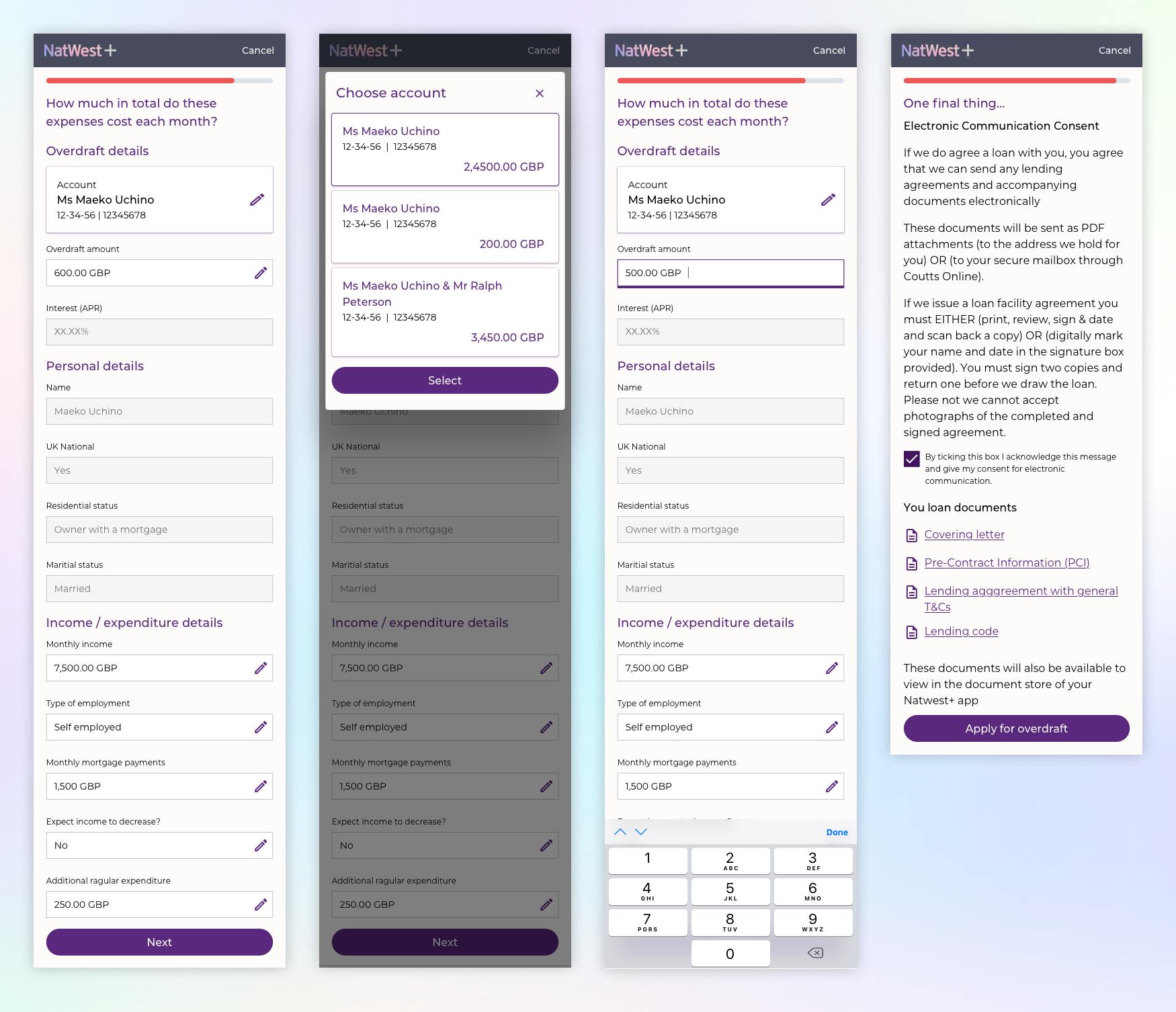
On the next screen, we see a further breakdown of expenses, bank account, overdraft amount, and income/expenditure details are editable at this point. Once users have revised this section, they can move to electronic consent and apply for the overdraft.
Sample of Finalise Overdraft screens below