Coutts App Enrolment
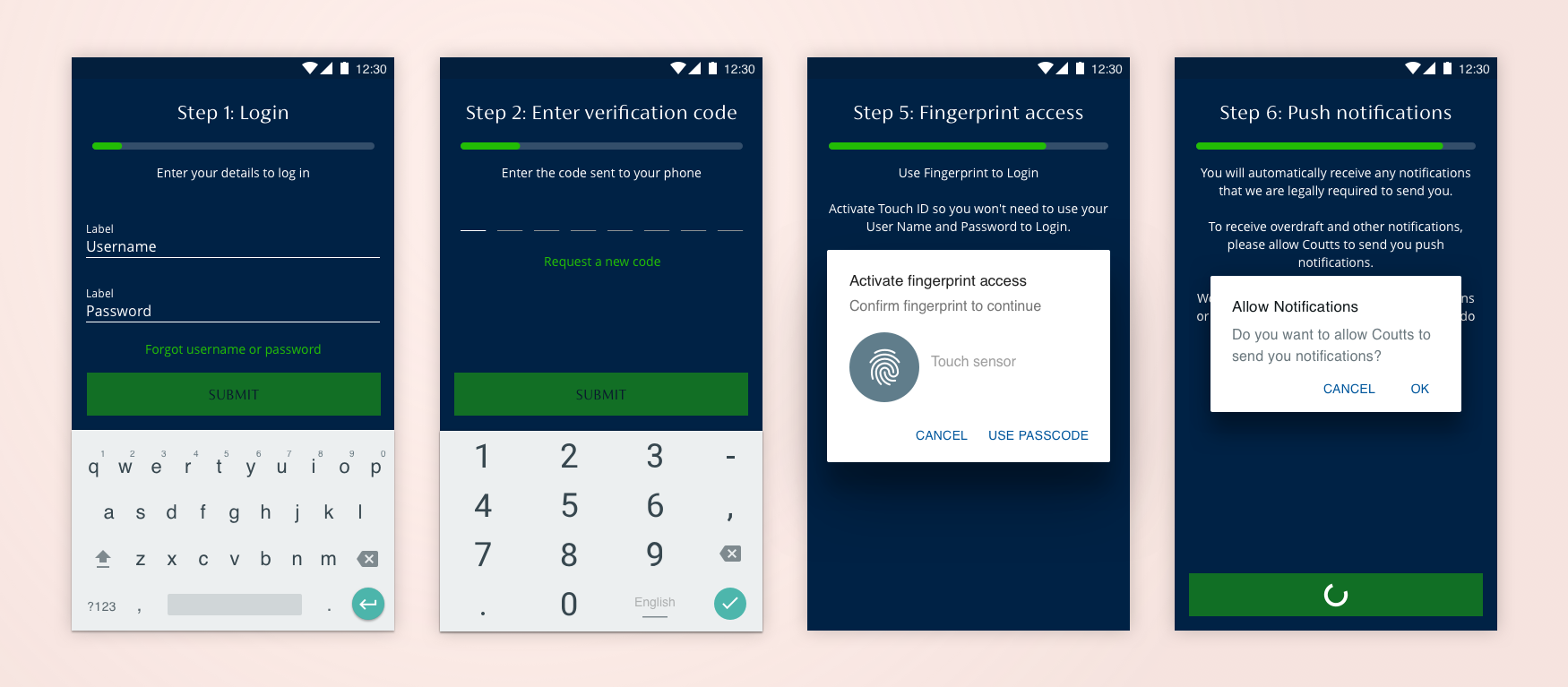
As part of the digital transformation projects at Coutts Private Bank, I was tasked with leading the UI design for the enrolment sections of both the iOS and Android Apps and responsive website. Two Coutts design systems power these.
Natwest group put a central services team together to manage the project, consisting of a project manager, product owner, business analyst, UX designer, developers, strategy manager and UI designer. We had daily stand-ups, weekly project meetings, product review meetings to provide feedback to iterate designs and retros.
I worked closely with the UX designer to conceptualise the flows and product design; I then created high fidelity designs and interactive prototypes to test with users to gain qualitative data and iterate designs.
Sample of Enrolment screens below

Enrolment features
- Welcome screen
- Login using Username and Password
- One time password verification
- Choose pin and re-enter pin for the app
- Biometrics verification, Face ID and Touch ID for iOS and Fingerprint for Android
- Push notifications message and agreement
Welcome to Coutts App
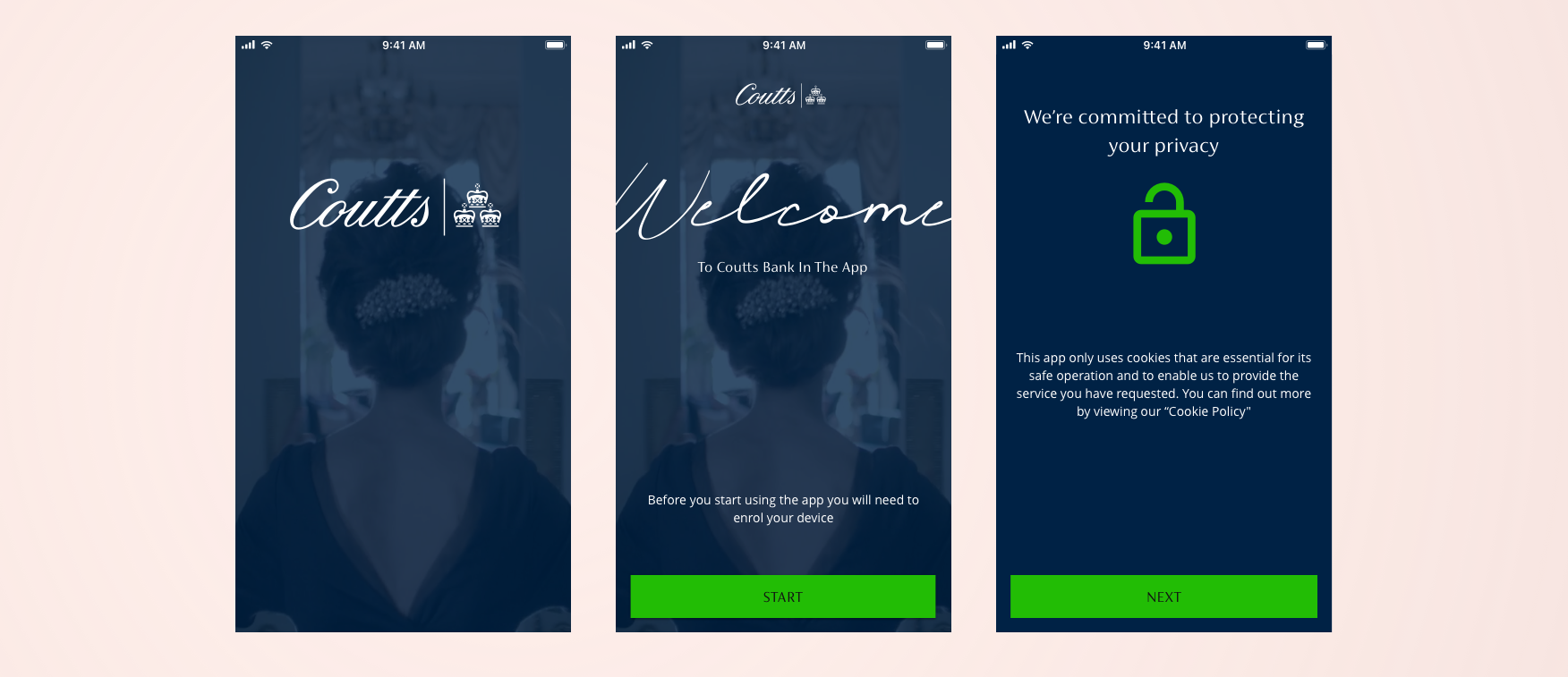
The focus is on bringing the Coutts branding style and imagery into the app for the welcome screens. The photo chosen is a still from a video marketing asset; I liaised with the brand team to select imagery used in this section. Also in this section is a notice about the type of cookies used for the Coutts Banking App. All of the components are bespoke, and I took them through several rounds of iteration
Below is a selection of Enrolment – Welcome core screens.
Step 1: Login
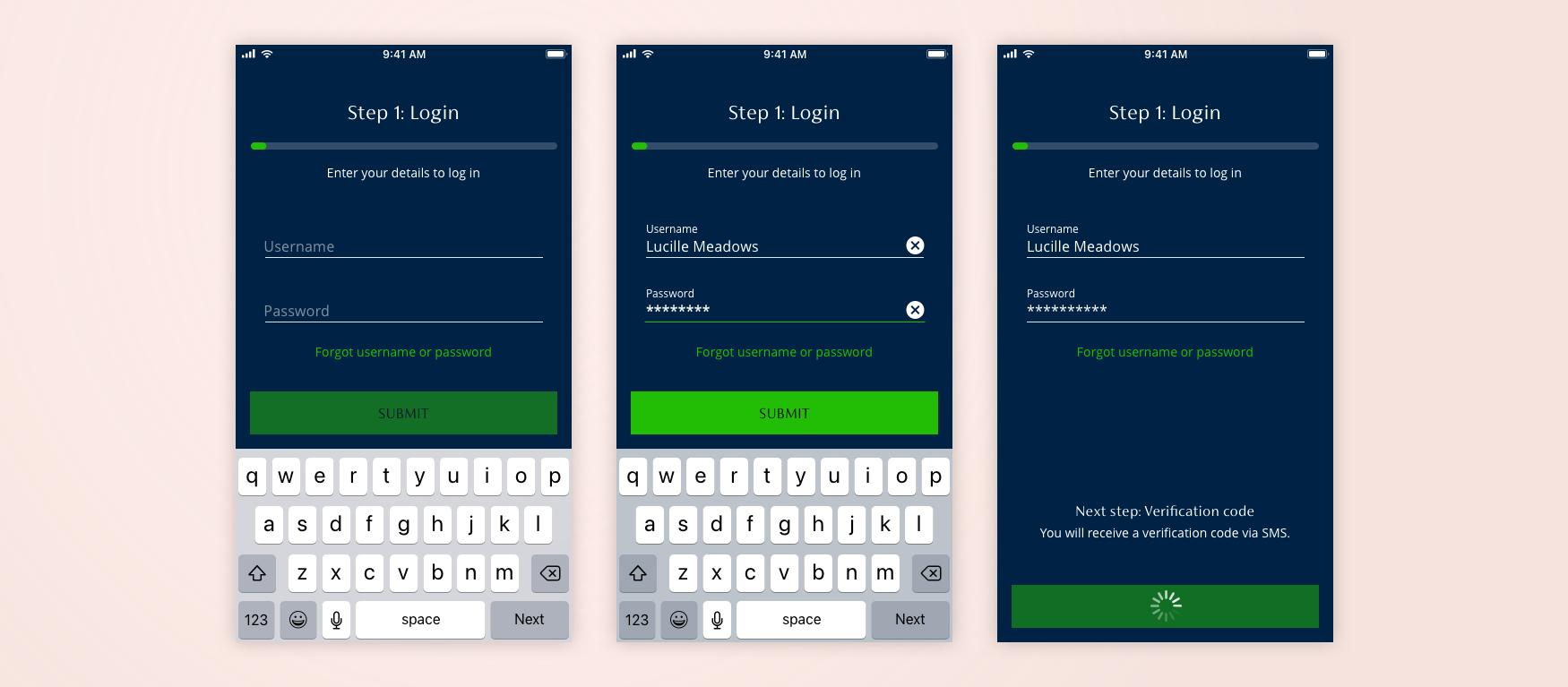
Each section of the flow has a progress bar to show the user how far along in the process they are. The Login screen has username and password fields to allow the user to log in securely. There is a forgot username password link. On the last screen of each step, there is helpful info on what is the next step in the process; here, the next step is the verification code.
Below is a selection of Login core screens.
Step 2: Enter verification code
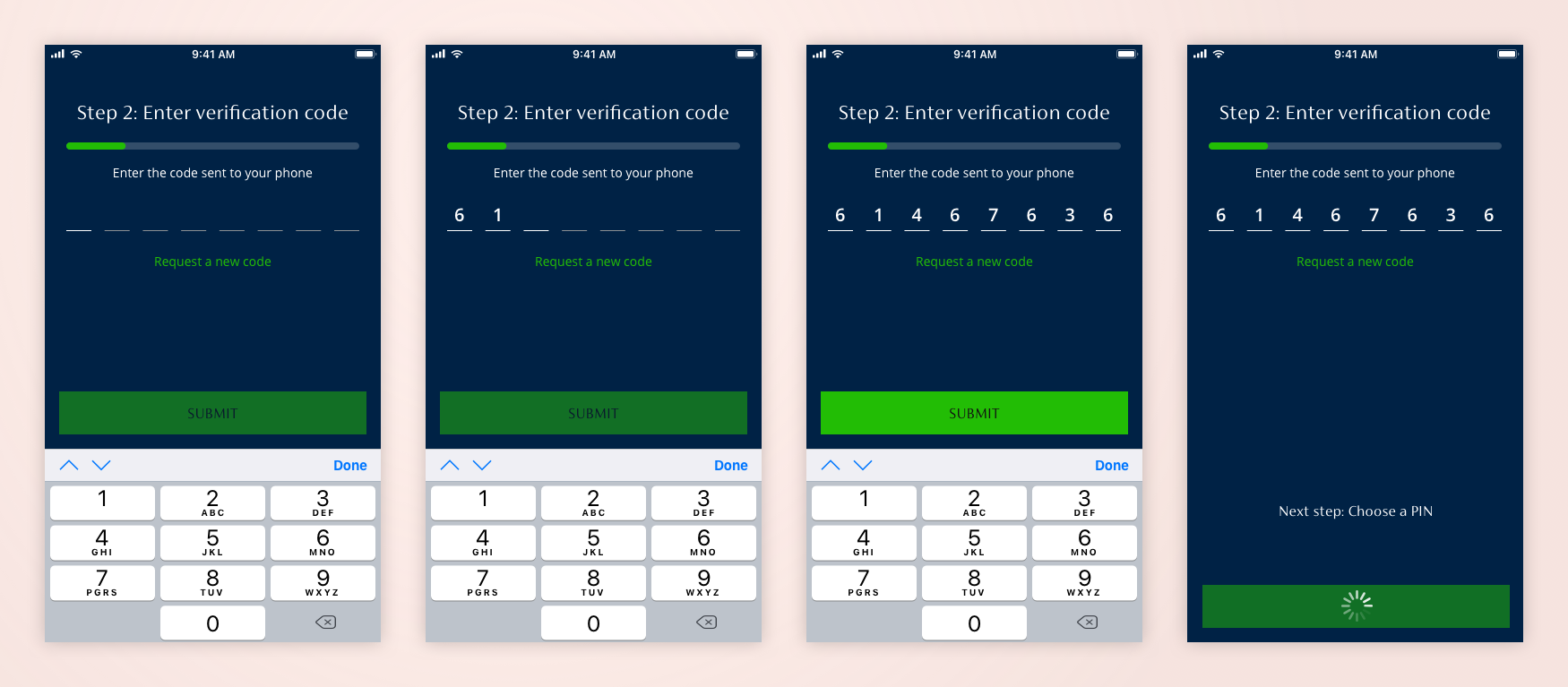
After the user has logged in using their unique username and password, they are sent a Verification Code by mobile SMS. The next step is for the user to enter that code into the following app screen. At this stage, the user can also request a new code. Throughout the Enrolment flows, we are using platform native components to familiarise the user with the app. The three states for the verification code entry points are inactive, active and filled.
Below are the Enter Verification screens.
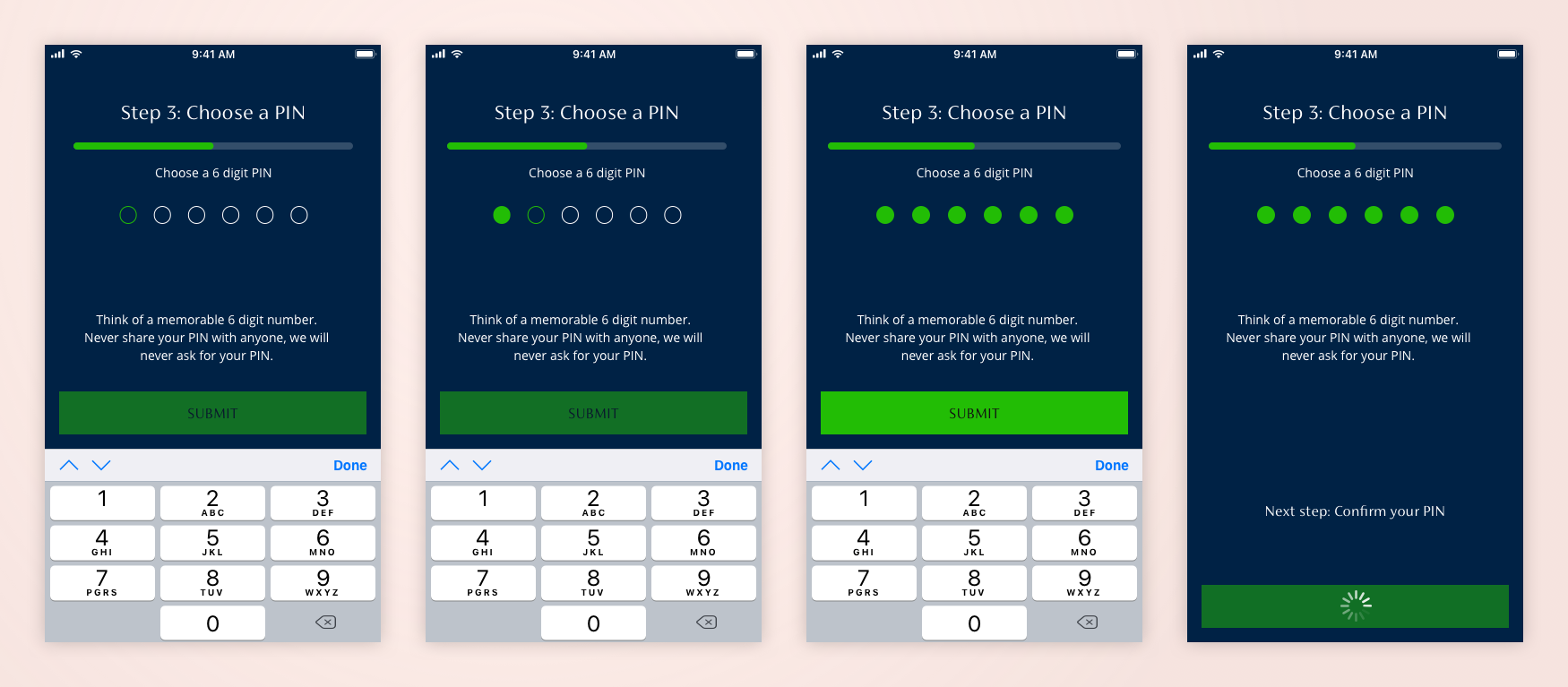
Step 3: Set up pin code
The next step if for the user to create their 6 digit PIN code to access the app without Biometrics. This is only triggered if Biometrics is not available on the users device. The three states for the choose pin entry points are inactive, active and filled. There is also some helper text on this screen. After this screen the user will confirm the PIN on Step 4.
Below are the Set up pin code screens.
Step 5: Biometrics
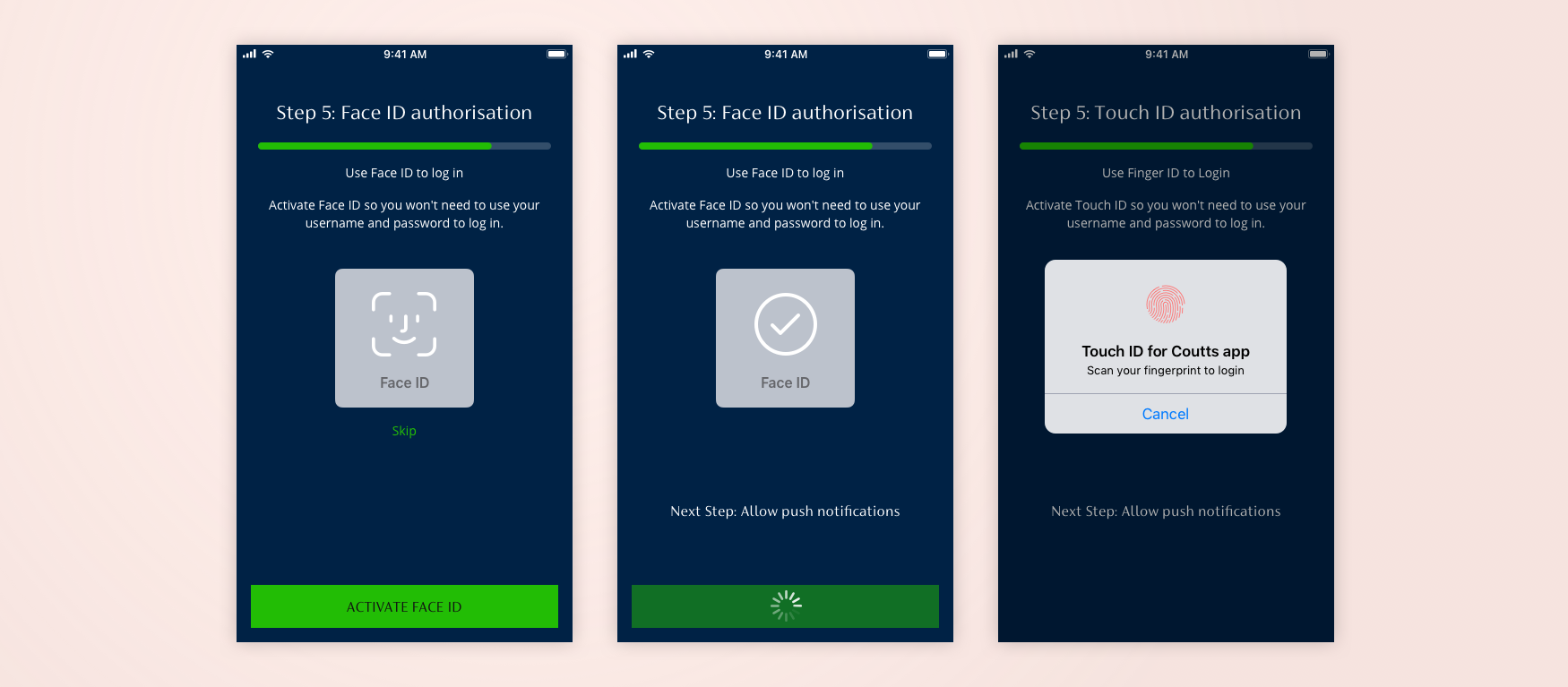
The next step is biometrics authentication; this will automatically trigger depending on the user phone; the first option activated is Face ID, then Touch ID; if neither is available, then it defaults to PIN code option.
Below are the biometrics screens.
Step 6-7: Push notifications & Complete
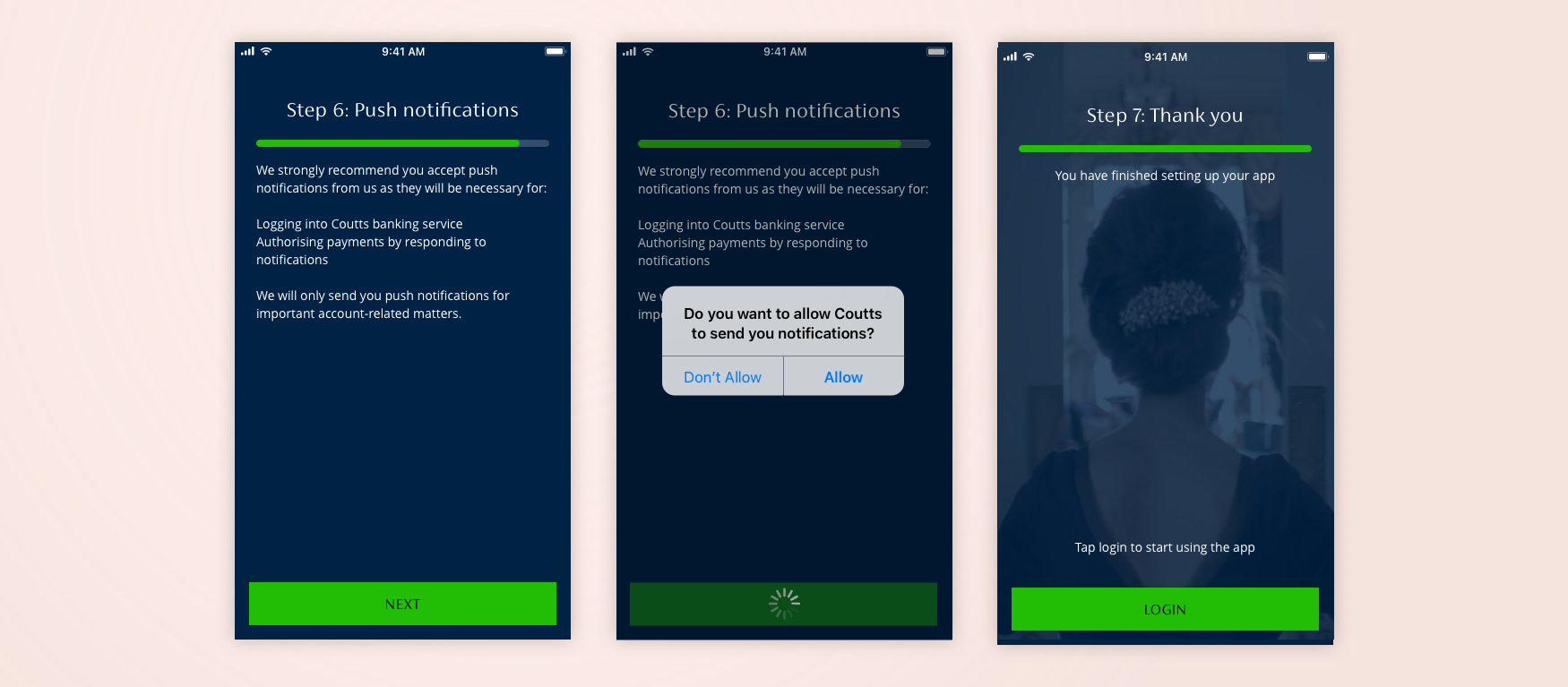
The last step for the enrolment flow is a push notifications message which the user must agree to, and then the app has finished setting up, and the user can log in.
Below are the push notification and thank you screens.
Enrolment unhappy paths
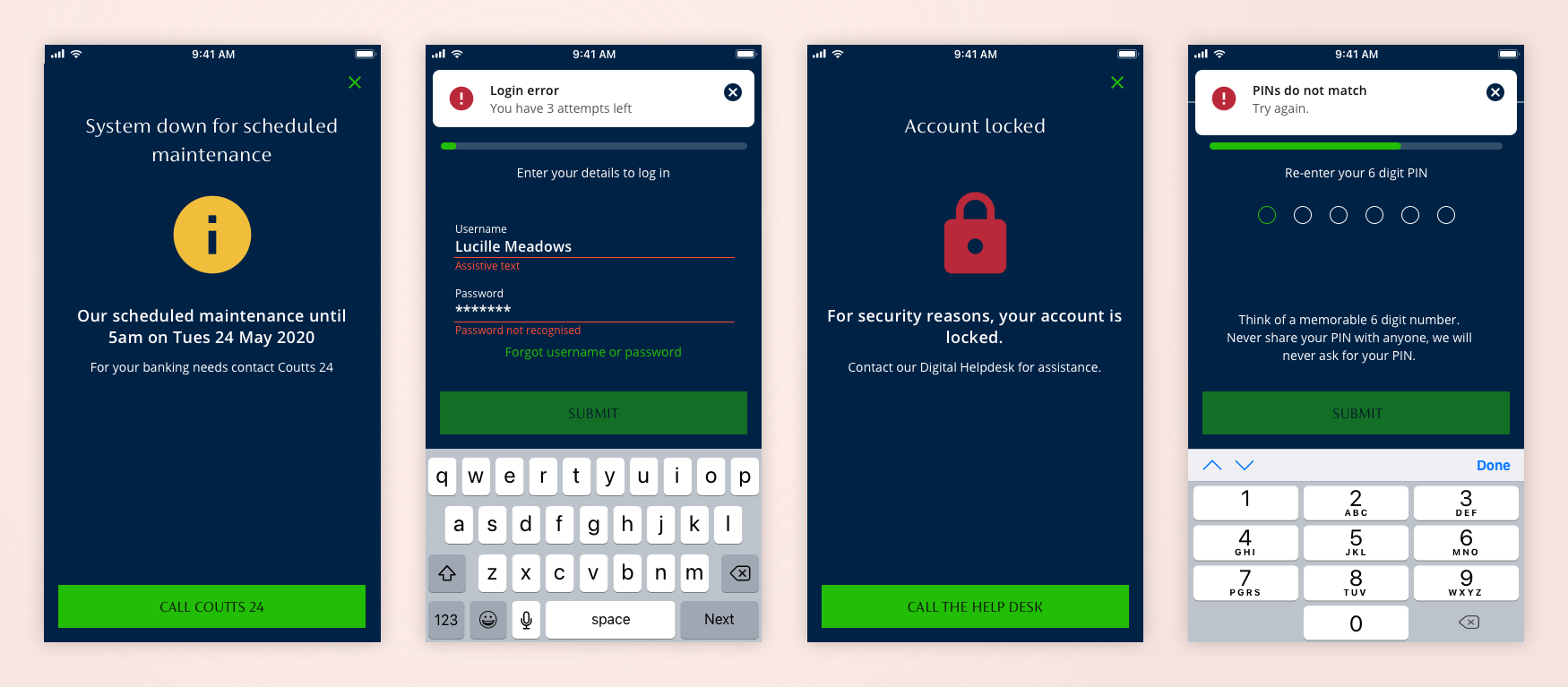
A complete set of error screen were created for the enrolment flow. The three error message types are, full screen takeover/modal, toast messaging and inline field errors.
Below is a selection error screens.
Android native components
A full set of screens were created for Android devices and I used the native components for inputs and messaging sections.
Below is a selection of Android screen with native components.